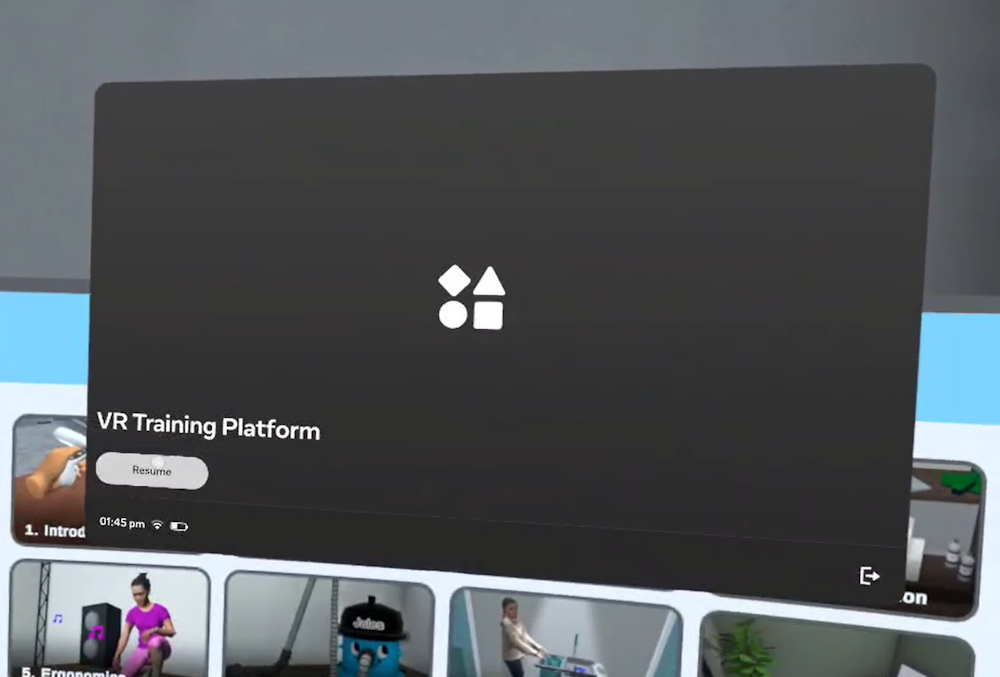
Setting up the play area
Before starting the VR training, you must set up the play area.
This is called the Guardian. The Guardian creates a virtual boundary that prevents the user from walking into walls or objects while wearing the headset.
The Guardian is automatically remembered by the headset, so you only need to set it up when you visit a new location.
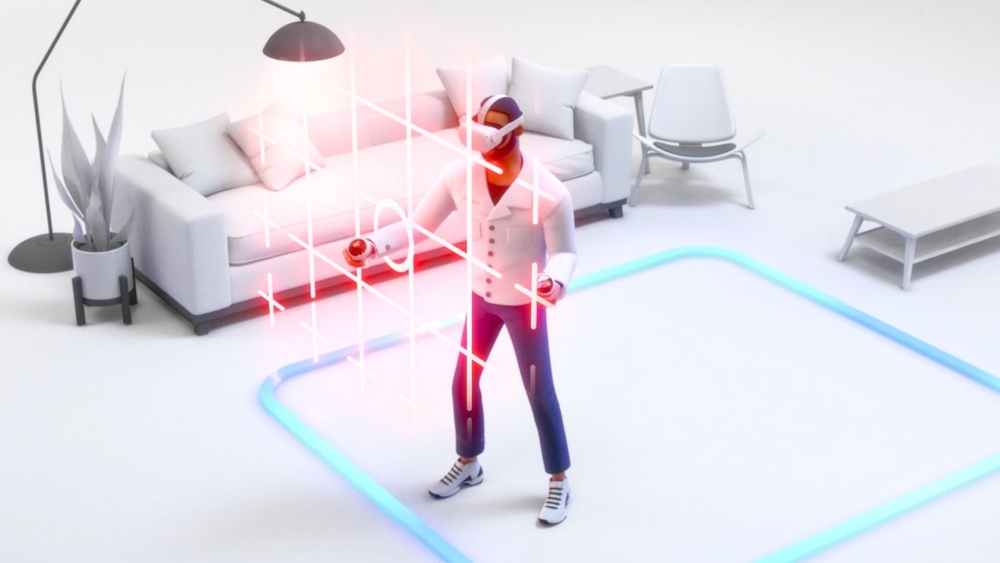
Recommended space
For the best experience we recommend creating a large enough guardian. Otherwise, you might not be able to reach everything. The recommended size depends on the training:
- Sofia VR: 2.5 × 3.5 meters
- Tom VR: 3.5 × 4.0 meters
- Charlie VR: 2.0 × 2.0 meters
Make sure there are no objects inside the play area, such as chairs, tables, or cleaning equipment.
1. Open quick settings
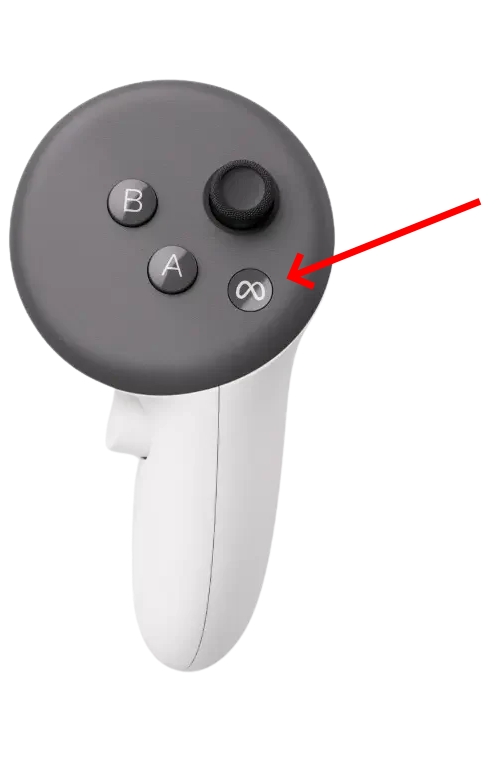
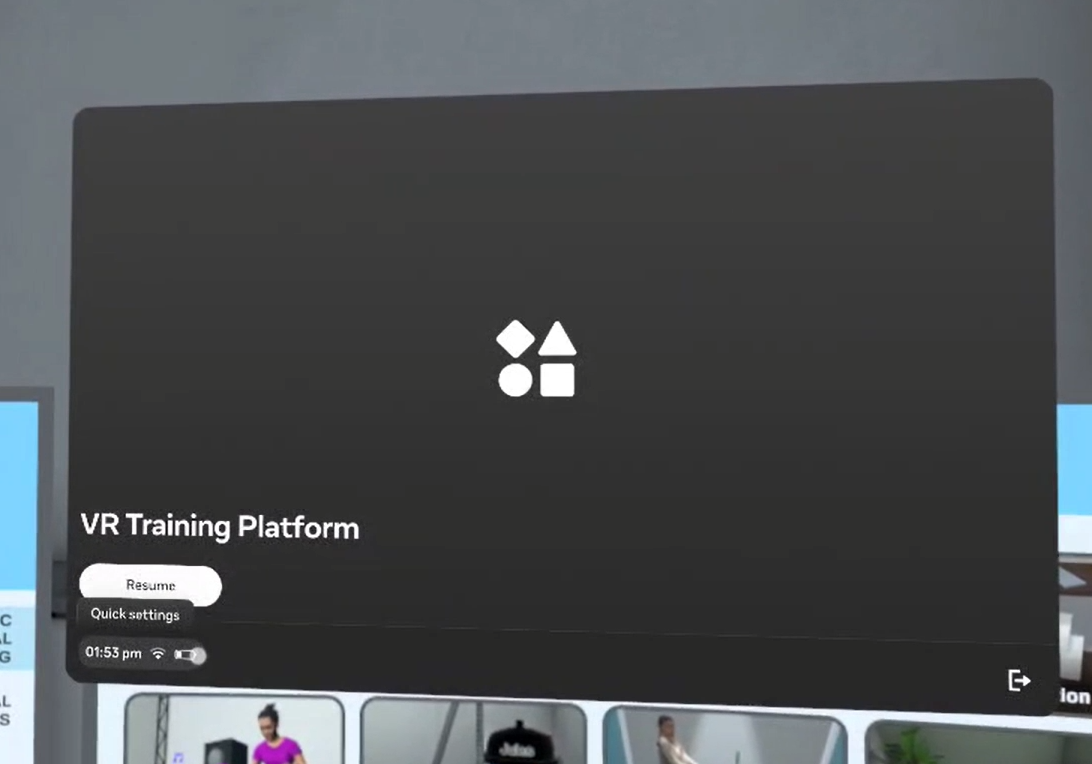
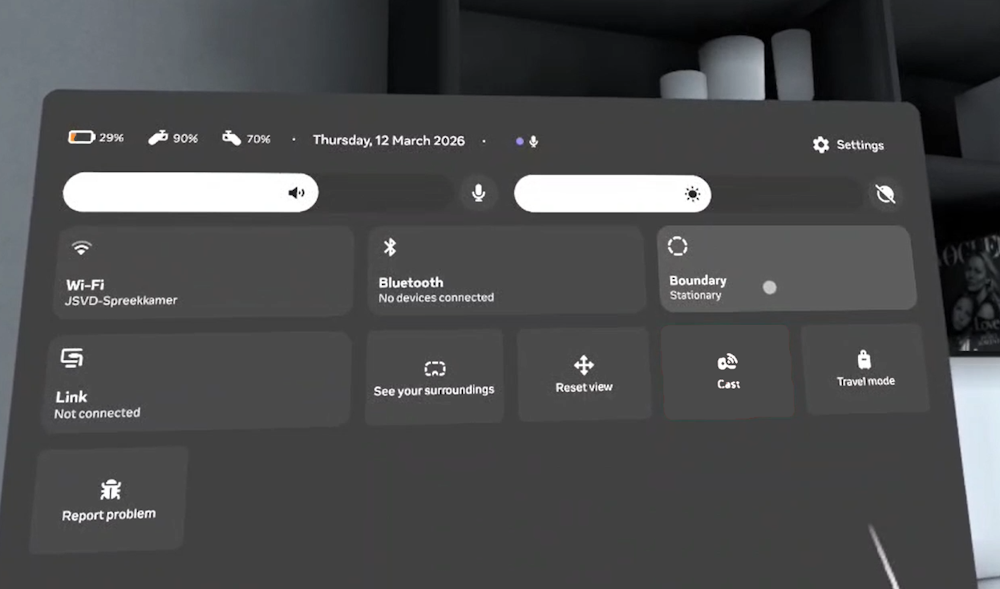
Press the menu button on the right controller. Only press this button once, holding the button won't work. After the menu opens, select the Quick settings button on the bottom left. This will open the Quick Settings menu on your right.
2. Open boundary settings
In the Quick Settings menu, select the Boundary button with your controller.
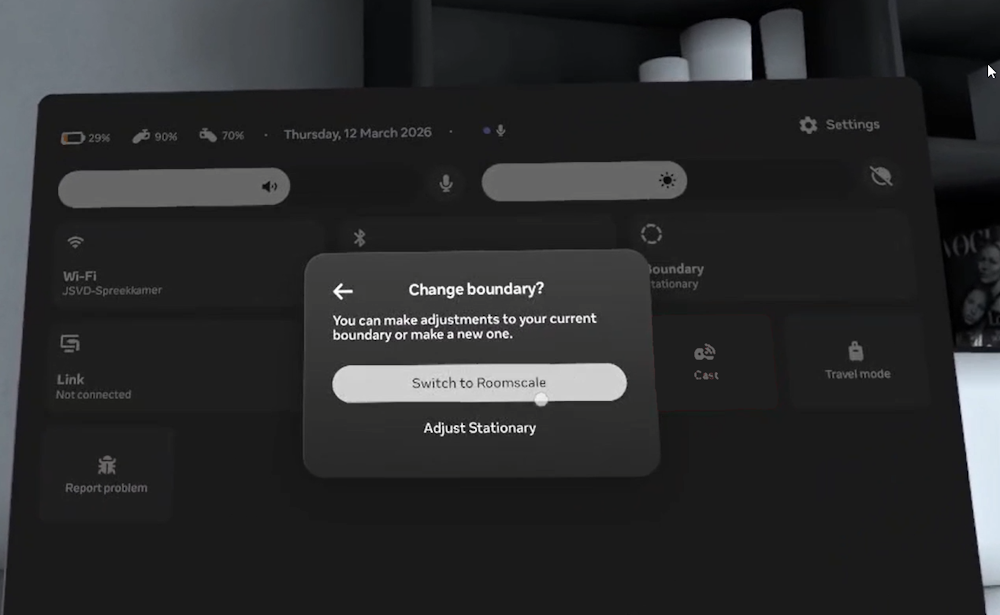
You can then select Switch to Roomscale (or Adjust Roomscale if you're already in the right mode).
3. Select roomscale
Once you're in the guardian editor, you will now see a camera view of the real world. Here you can draw a new play area.
Always make sure you select Roomscale. Do not select Stationary.
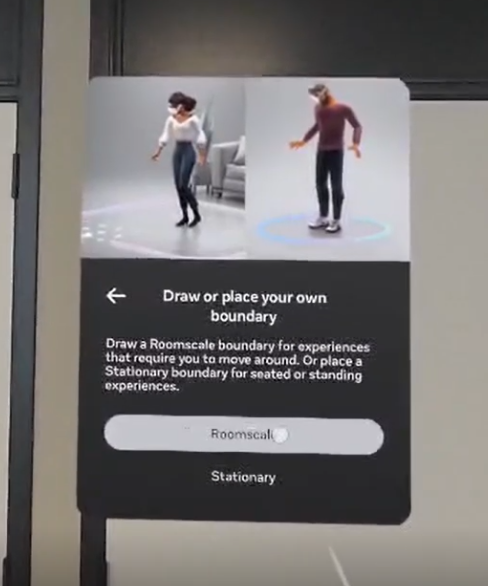
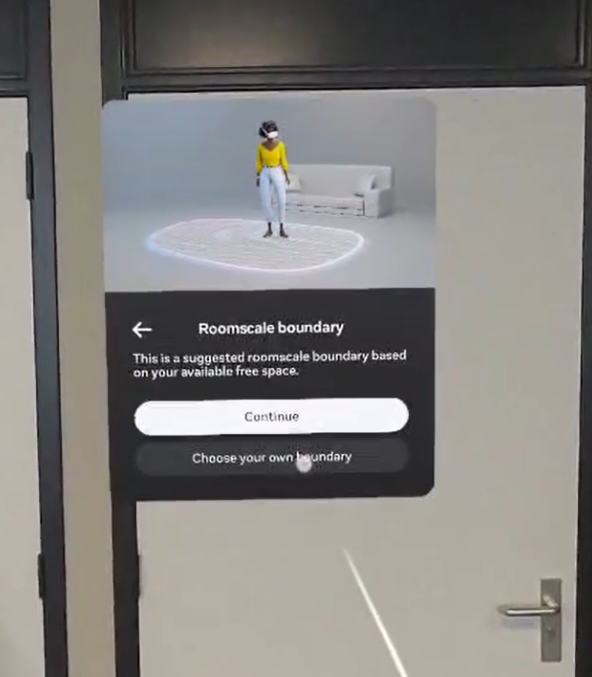
After selecting Roomscale, the system will make a boundary for you. This boundary is usually too big, so it is better to then select Choose your own boundary. This allows you to draw your own play area.
4. Drawing the boundary
The system will first ask you to confirm the floor level. It will automatically decide the floor level. If this is correct, can you can press Confirm. Otherwise, you need to select Redo and move your hands to the floor to calibrate this yourself.
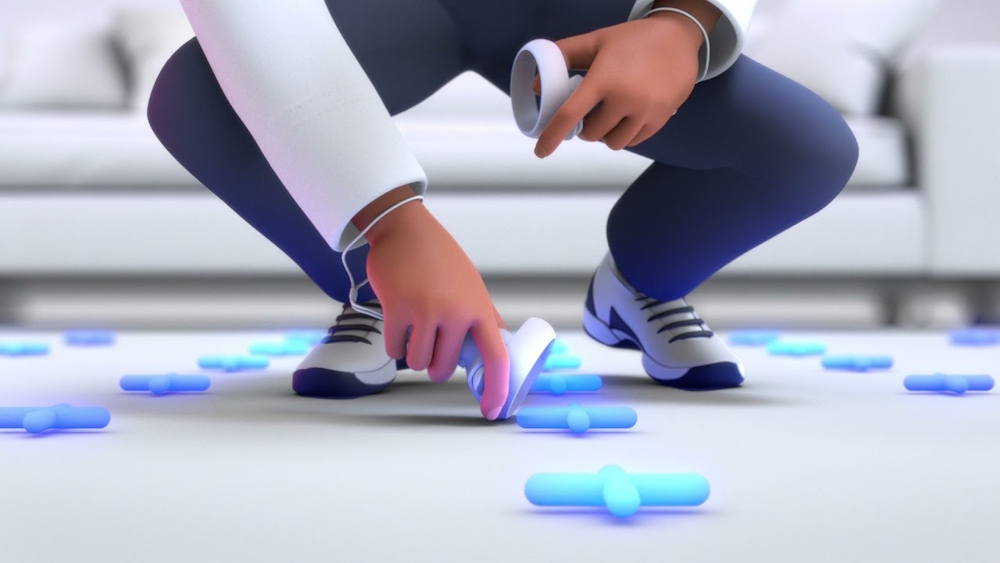
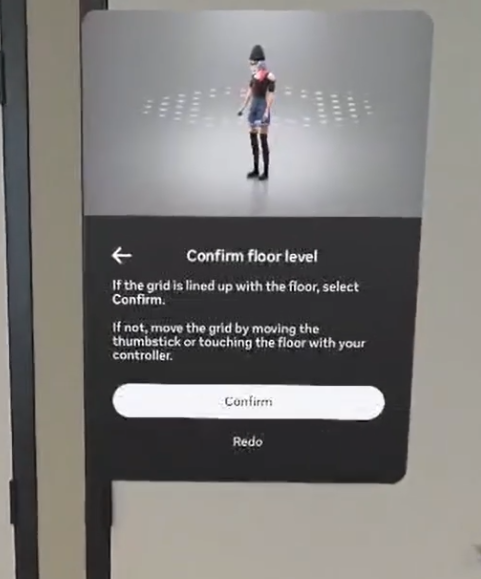
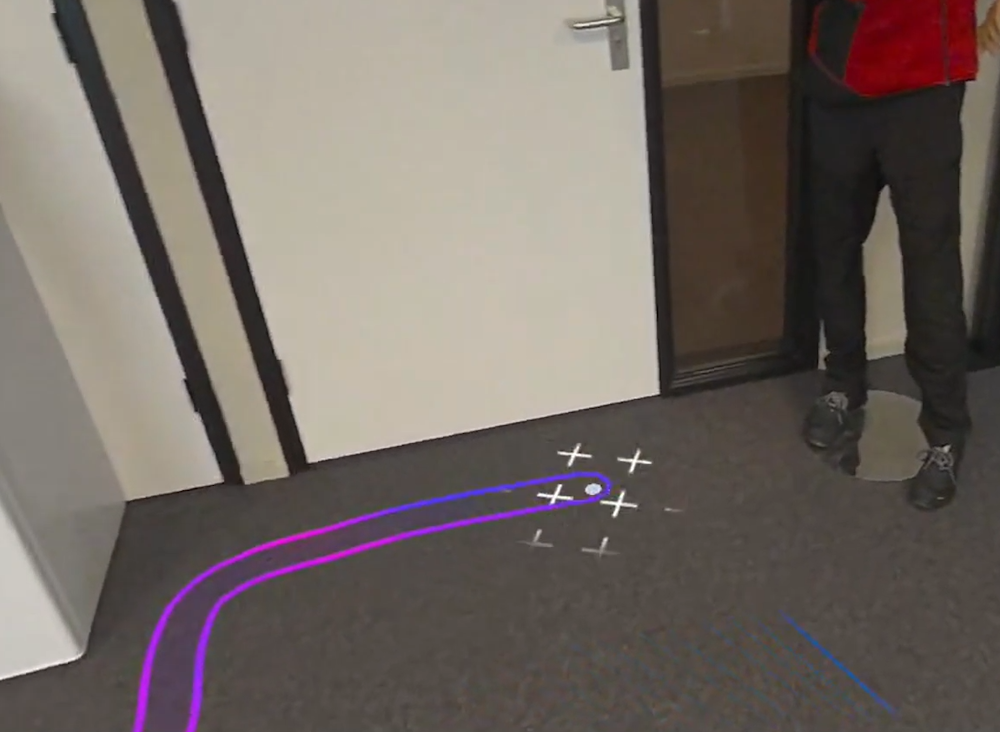
After confirming the floor level, you can then draw the boundary by yourself. You do this by pointing with your controller and using the trigger in your hand to draw on the floor.
6. Confirm and return to training
Once you have completed drawing the boundary, you can look around to see if it's correct. If it is correct, you can select Confirm. Otherwise, you have to select Redraw and draw again.
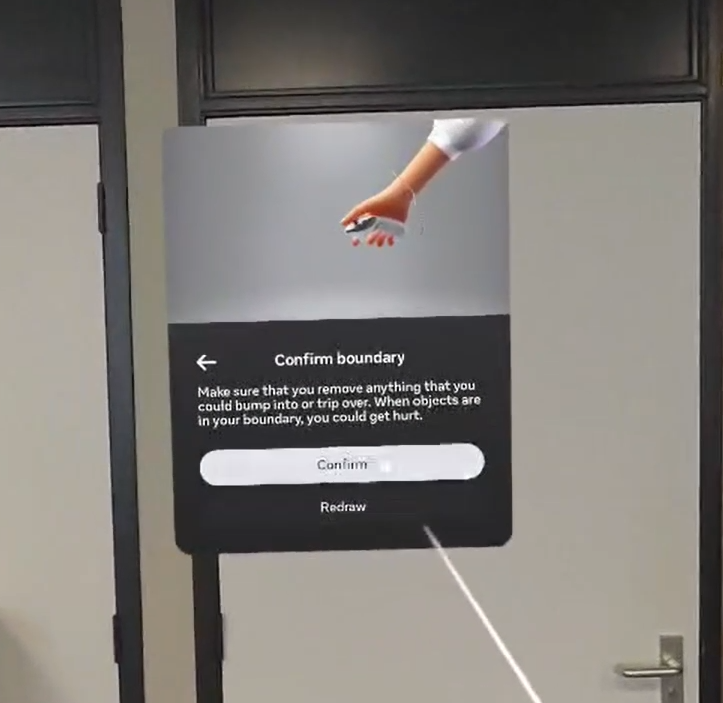
After the boundary is set up, you can now select the Resume button to go back to the training.