Using the Spectator
The Spectator allows a trainer to watch what is happening inside the VR headset and manage the training session.
With the Spectator you can follow the trainee live and control parts of the training from the computer.
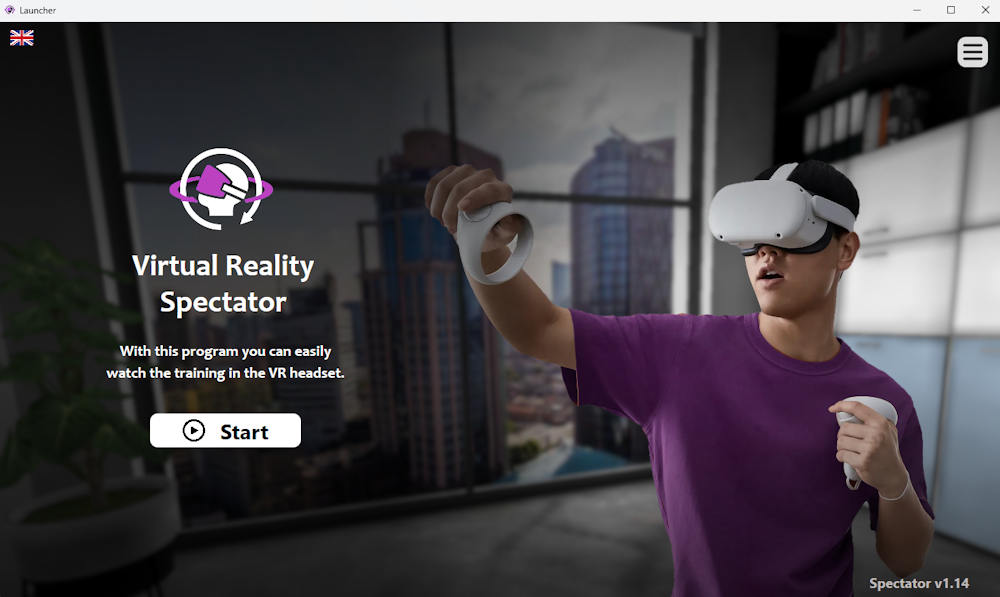
Starting the Spectator
- Start the system and open the Launcher.
- Press the Start Spectator button.
- The Spectator application will open.
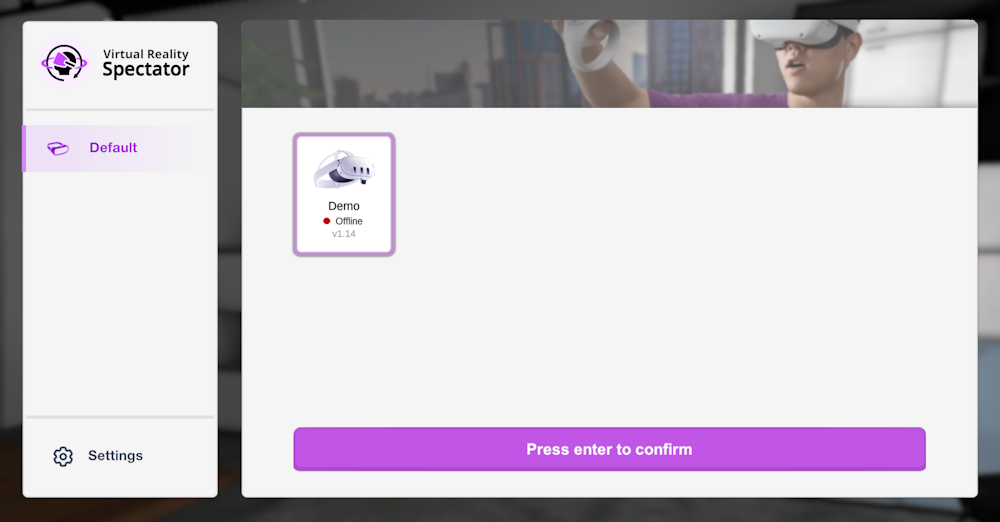
You will see a list of available VR headsets.
Connecting to a headset
- Select the headset you want to monitor.
- Press Confirm.
Once connected, the screen will show the live view from the VR headset.
Managing the training
From the Spectator interface you can control different parts of the training.
For example you can:
- Switch the language
- Change the active student
- Open training settings
This allows the trainer to guide the training session without interrupting the trainee.
In the lobby, you can also start modules.
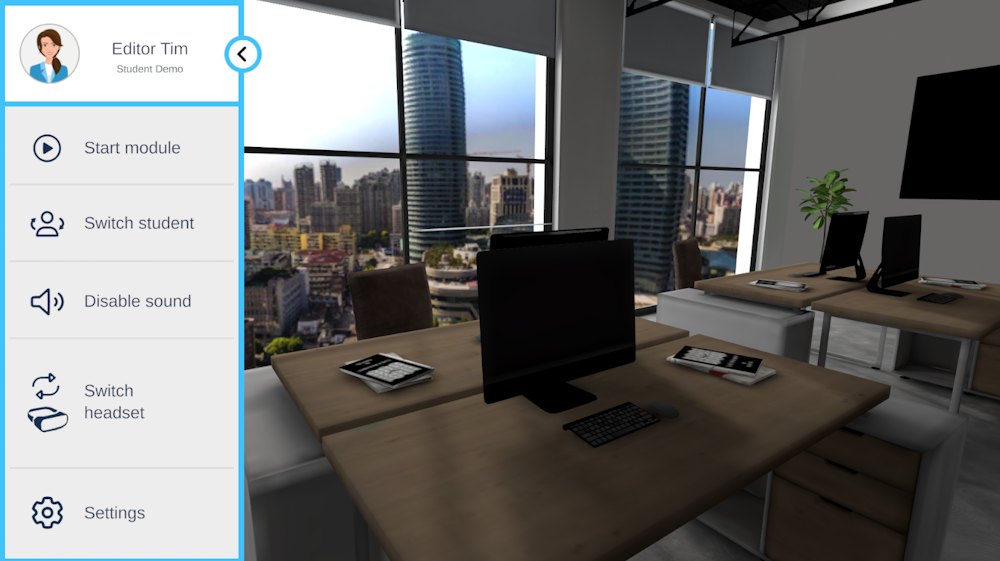
In the module, you can also skip steps and close modules.
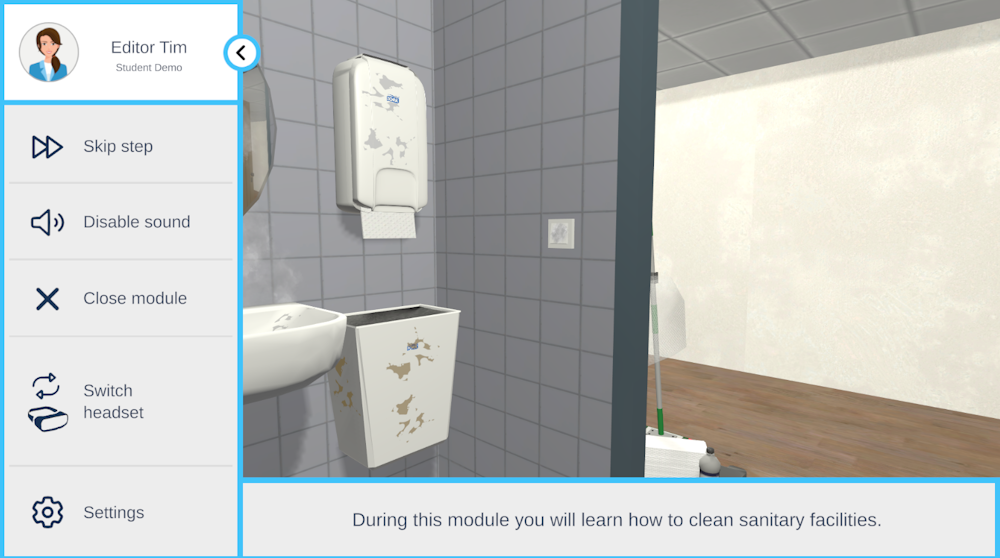
Showing/hiding the controls
The interface buttons are visible in the lobby. While you are in a module, the interface buttons are hidden by default.
- If you want to hide the interface buttons: Press the arrow in the top-left corner of the screen.
- If you want to show the interface buttons: Simply tap anywhere on the screen.
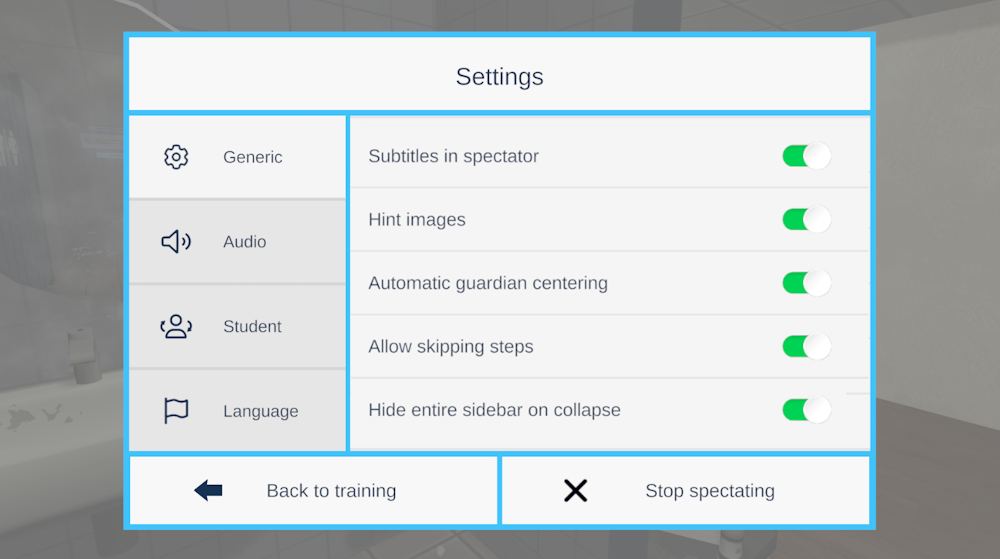
Changing settings
By pressing the settings button, you can get a menu with a bunch of different spectator options. These are saved on the box, so you don't have to set them again every time you train.