Adding your own devices
If you want to use your own VR headset instead of one supplied by Training Workx, you must first register the device in the portal. After registering the device, you can install the training software using the Launcher.
Important
Your VR headset must be in Developer Mode for the installation to work.
Registering a device
- Log in to the Training Workx portal.
- Go to Training → Devices.
- Click Register own device.
- Add the new headset.
The headset will now appear in your device list.

Installing the software
After registering the headset, you can install the training software.
- Turn on the VR headset.
- Connect the headset to your computer using a USB-C cable.
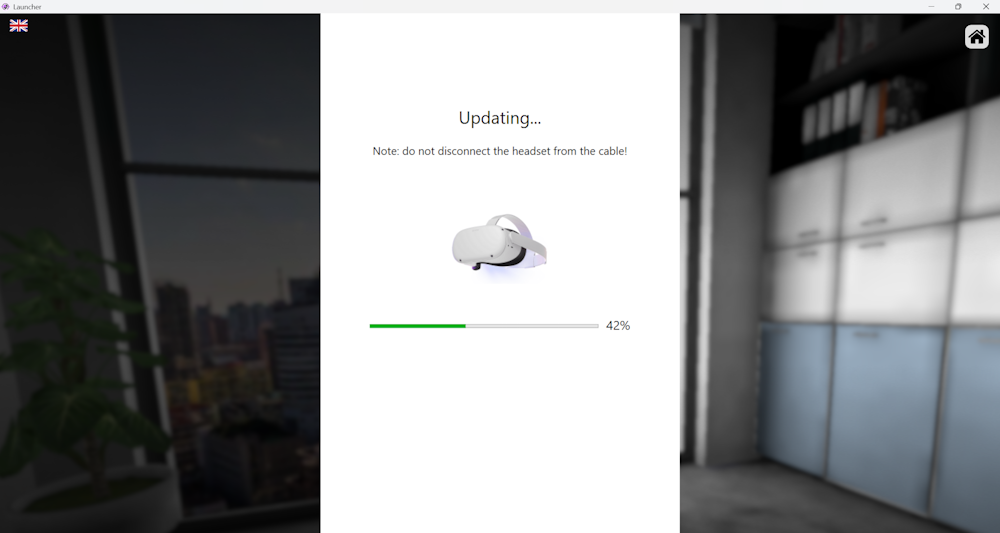
- Open the Launcher.
- Go to the Update section.
- Click Update to install the software.
The installation process may take a few minutes.
Identifying the headset
When the installation is complete:
- Put on the VR headset.
- Start the training application.
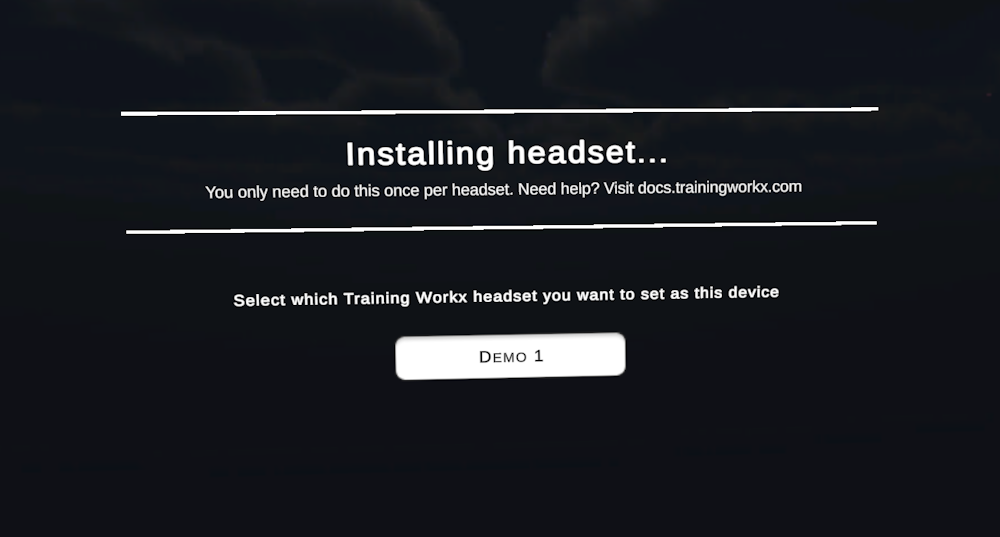
- You will see a list of unregistered headsets.
- Select the correct name for your device.
The headset will now be linked to your account and ready to use for training.