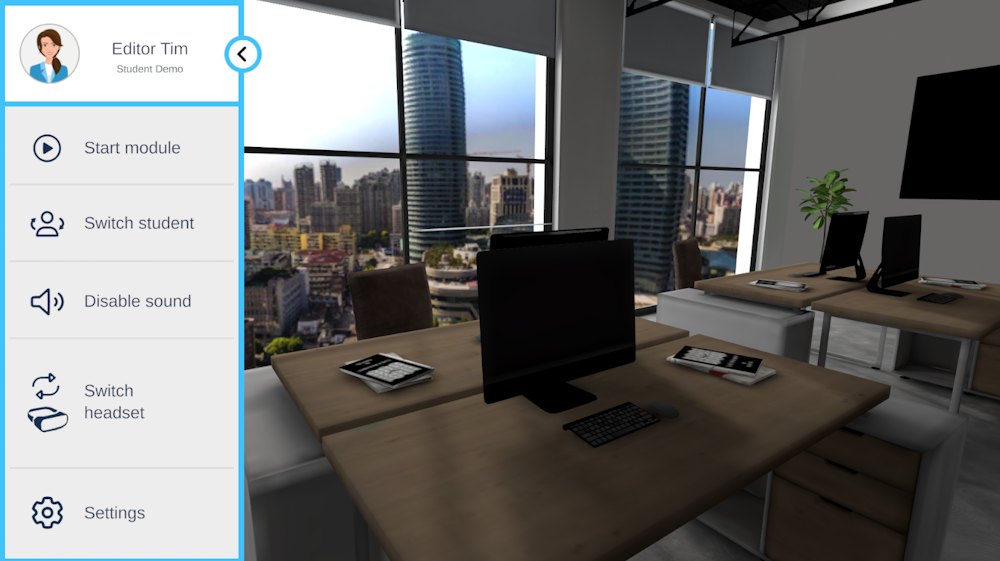
Switching students
During training it is possible to switch between different students.
This allows multiple trainees to use the same VR headset while keeping their progress separate.
Students are managed through the online portal and can then be selected inside the training.
Selecting a student in VR
- Start the VR training.
- The training will begin in the Lobby.
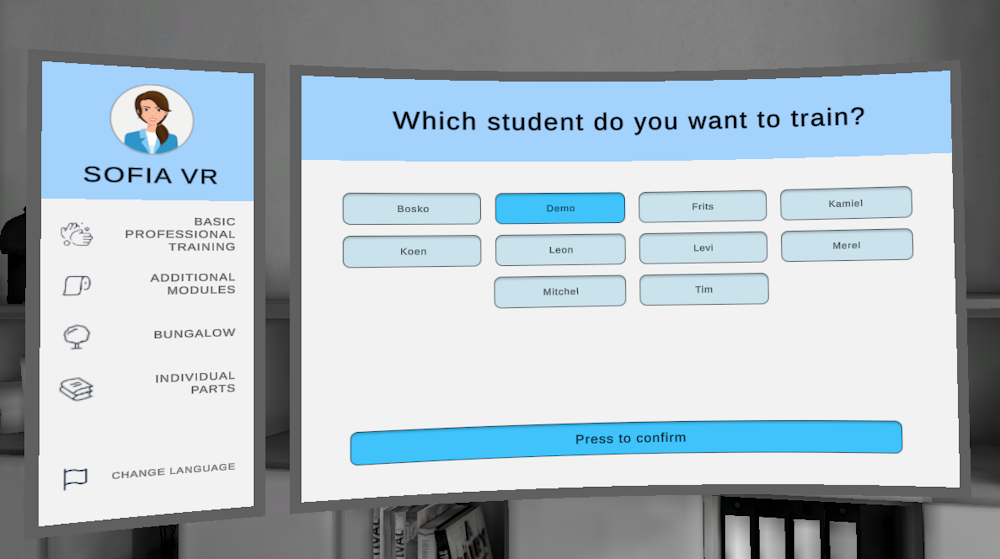
- On the right side of the whiteboard you will see the student panel.
- Select the student you want to train.
- Touch Press to confirm
The selected student will now be active for the training session.
Keep in mind that changing student will change the language to their preferred language. The preferred language can be set in the training portal.
Managing students as a trainer
Before students can be selected in VR, they must be added by the trainer.
- Go to the online portal.
- Add the students to the correct class or class.
- Select which class is training on the headset.
See Setting up classes.
Once this is done, trainees can switch between students inside the training.
Switching students from the Spectator
Trainers can also switch the active student using the Spectator.
This allows the trainer to change students without interrupting the trainee in VR.