Controllers not working
If the controllers are not responding in the VR headset, there can be a couple different causes. Follow the steps below to fix the issue.
1. Do you have the right controllers?
Sometimes, when you have multiple headsets, the controllers can get swapped. It's important to check if they are the correct controllers.
If you put on your headset, the correct controllers will start vibrating. It can help to test with other controllers if you're not 100% sure.
2. Are the batteries empty?
Most controller issues are caused by empty batteries.
Removing the battery cover
- Hold the controller in your hand.
- On the side of the controller you will see a small white release button.
- Press this white button.
- The battery cover will pop out slightly.
- Remove the cover from the controller.
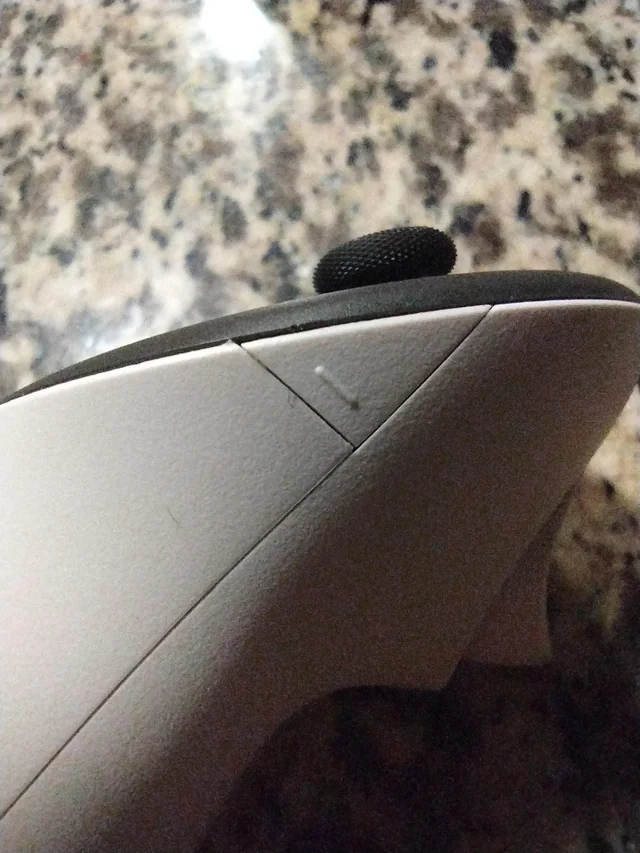
Replacing the battery
- Remove the old battery.
- Insert a new AA battery.
- Place the battery cover back onto the controller until it clicks into place.
Repeat these steps for both controllers if necessary.
Turn the controllers back on
After replacing the batteries:
- Press any button on the controller.
- Wait a few seconds for the controller to reconnect to the headset.
The controllers should now work normally in VR.
If the controllers still do not respond
- Restart the VR headset.
- Turn the controllers on again.
If the issue continues, check that the batteries are installed correctly.