Installing the Launcher
The Launcher is used to install and update the VR training software and to start the Spectator application.
You can install the Launcher on your own Windows computer if you want to run the training without using a training case.
Requirements
Before installing the Launcher, make sure you have the following:
- A stable Wi-Fi network
- A Windows computer (preferably a laptop)
- A USB-C port to connect the VR headset
- A supported VR headset (at least Meta Oculus Quest 2, preferred Meta Quest 3/3S)
The Wi-Fi network must allow both the headset and the computer to connect to each other.
Download the Launcher
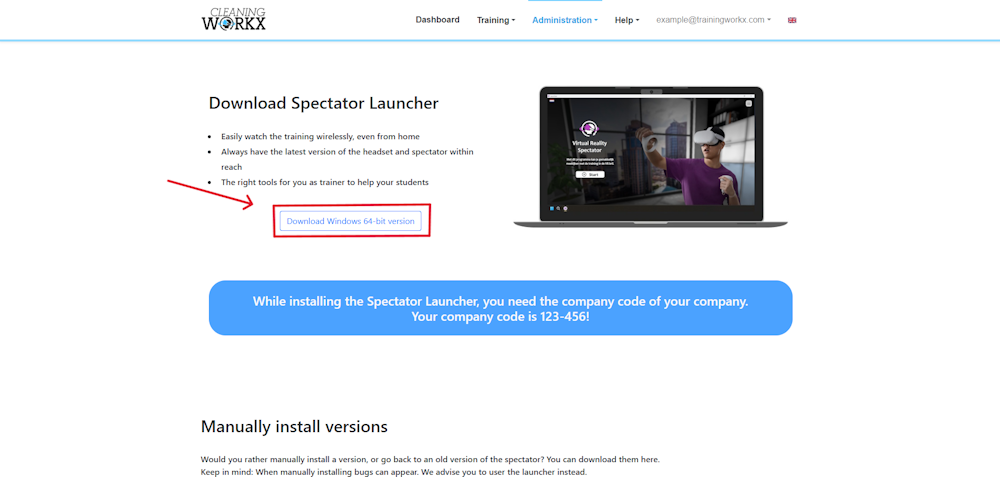
- Go to the Training Workx portal
- Navigate to Administration → Downloads
- Download the Launcher Installer
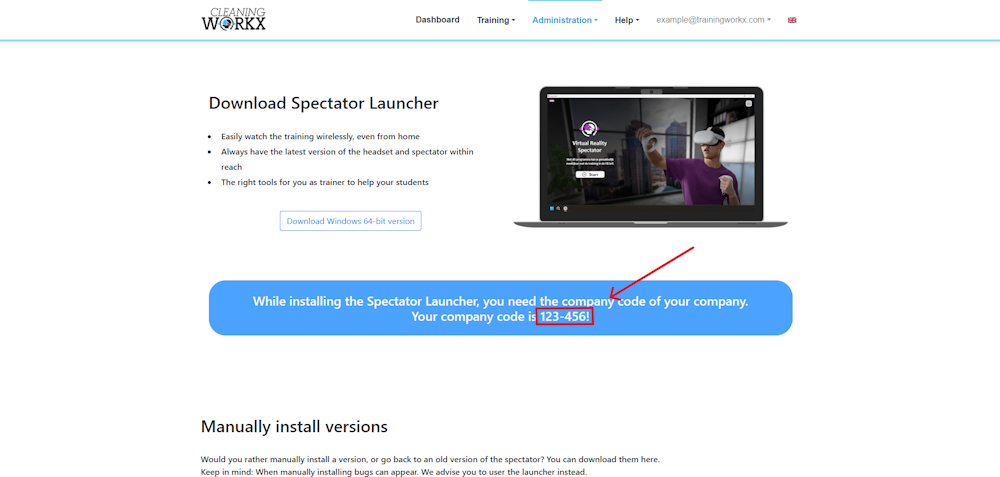
You will also find your company access code on this page.
Install the Launcher
- Open the downloaded Launcher Installer.
- Follow the instructions shown on screen.
- The Launcher will install automatically.
Once installation is complete, you can start the Launcher from your computer.
Enter the access code
The first time you open the Launcher, it will ask for an access code.
- Copy the code from the portal download page.
- Enter the code in the Launcher.
- Confirm.
The Launcher will now connect to your company account and automatically install the Spectator software.
What the Launcher is used for
After installation, the Launcher can be used to:
- Start the Spectator
- Updating the VR headset
- Updating the Spectator software
- Manage training connections between headset and computer