No Wi-Fi connection
If the Spectator or the headset shows a No Wi-Fi popup, it may be possible that the box doesn't have enough cellular reception. There are a couple ways you can prevent this.
1. Move the box to a different location
Moving the box to a location with better connectivity is usually the best choice. Avoid strong steel constructions and move the box closer to windows and the outside.
If this isn't an option, or there is still not enough coverage, you can try seeing if the box and headset are connected correctly.
2. Retry connection
If the popup appears on the box
- Close the training application.
- On the touchscreen of the case, look at the task bar in the bottom right corner.
- Press the Wi-Fi icon.
- Check if the system is connected to the VRCase network.
If it is not connected, select VRCase and connect to it.
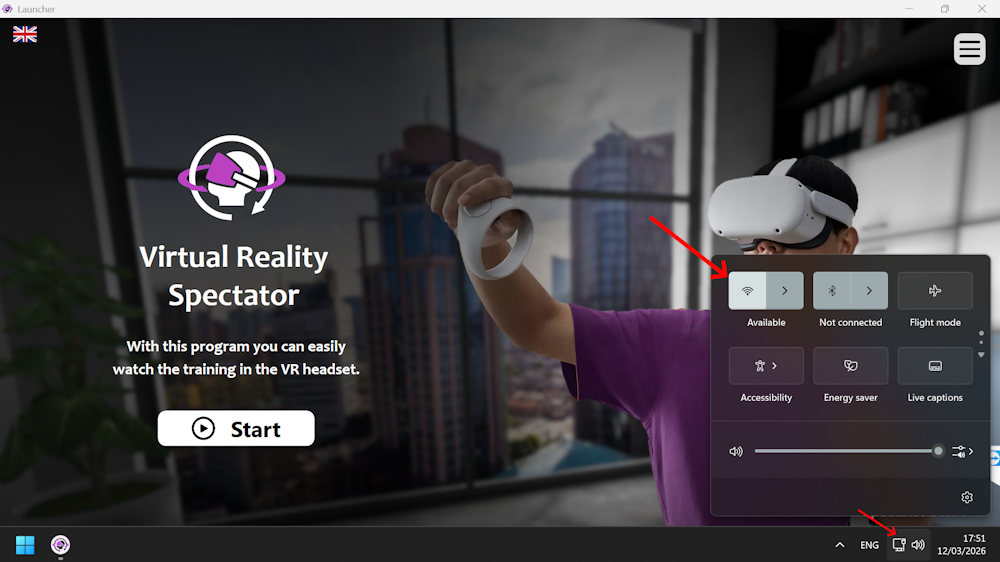
If the popup appears in the headset
- Put on the VR headset.
- Press the Meta (Oculus) button on the controller to open the menu.
- Open Quick Settings.
- Select Wi-Fi.
- Make sure the headset is connected to the VRCase network.
If it is not connected, select VRCase and connect to it.
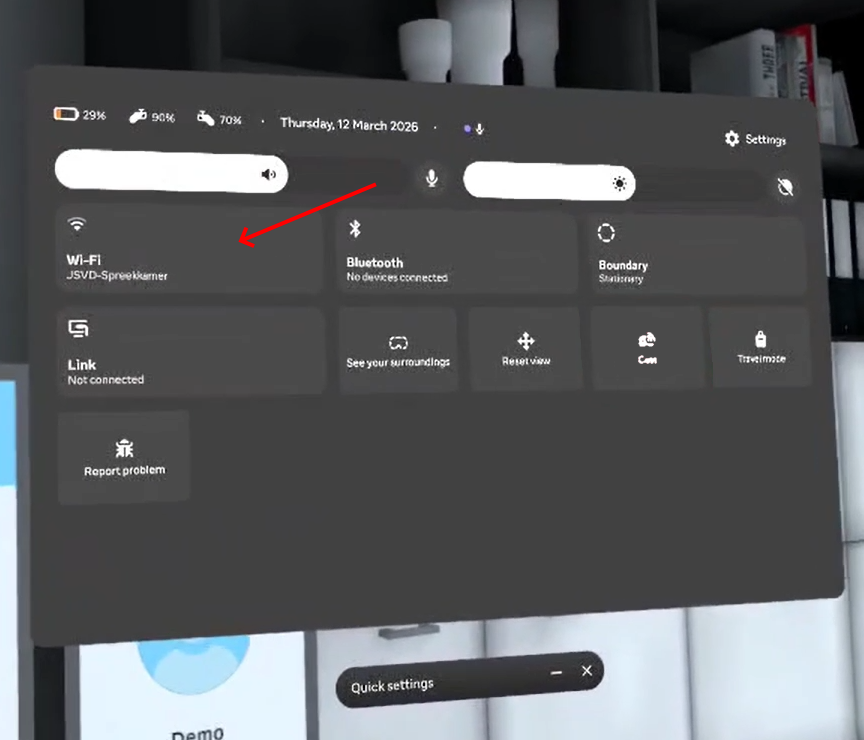
3. After reconnecting
Once both the case and the headset are connected to VRCase, start the training application again. The headset and Spectator should now connect normally.
If you still don't have Wi-Fi, you will need to connect the box and headset to your own network. You can do this by going to the settings explained above and selecting your own network instead.
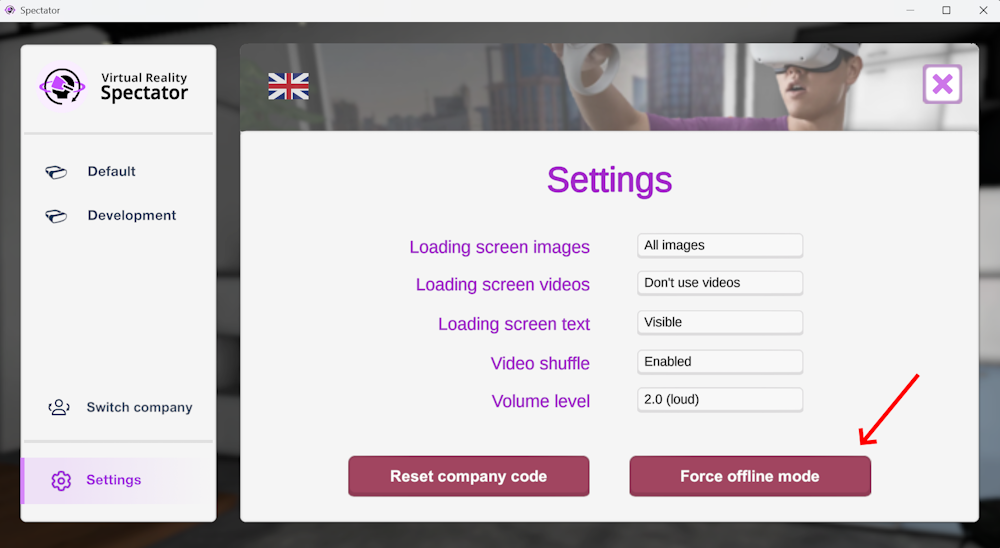
4. Offline mode
If using your own network also isn't an option, you can try using the headset's offline mode. This will allow you to see what the user is doing without an internet connection.
Keep in mind that this is only a backup solution, and that this means you won't be able to connect to your students and results data when using offline mode.
You can force offline mode by selecting Settings on the bottom left and then Force offline mode on the right.
If you get stuck with persistent internet connection issues, please contact support@cleaningworkx.com and we will help you get it fixed.