What's in the box
Our Training Boxes contain everything needed to run and supervise a VR cleaning training session. Before starting the training, it is important to understand which components are included in the VR training case.
Below is an overview of all components located inside the case.
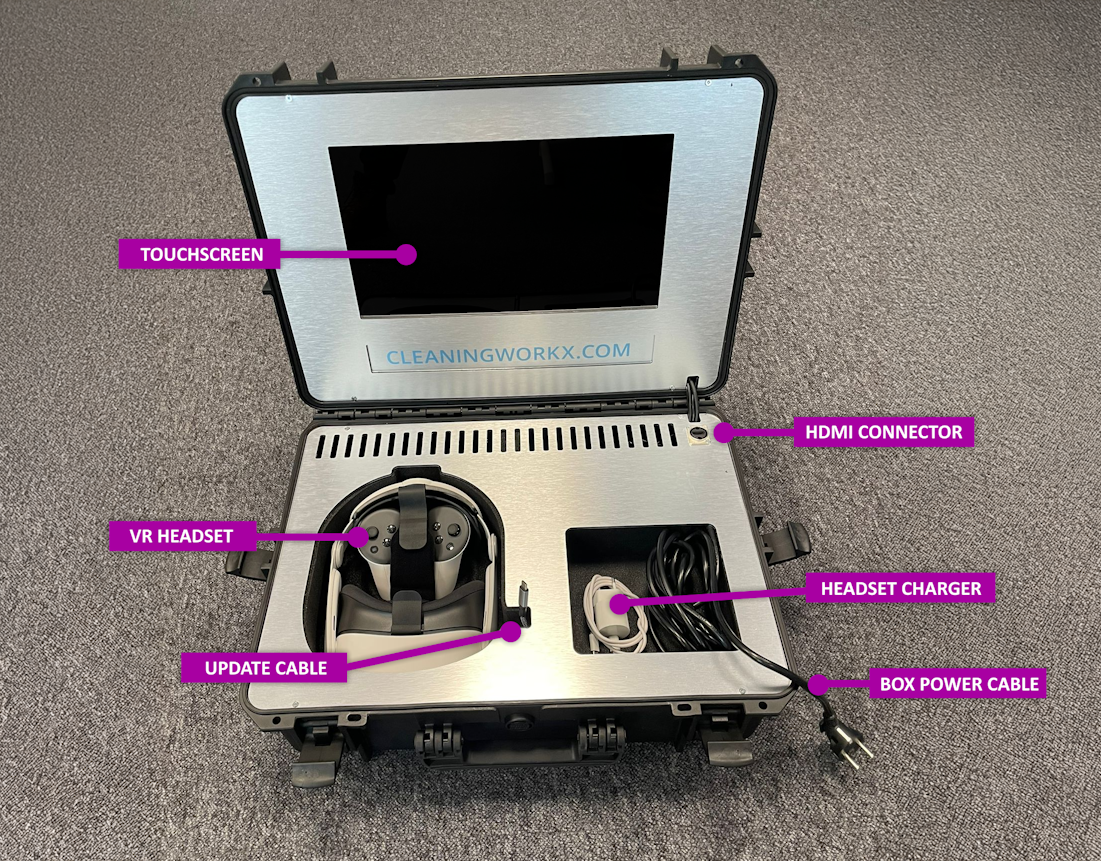
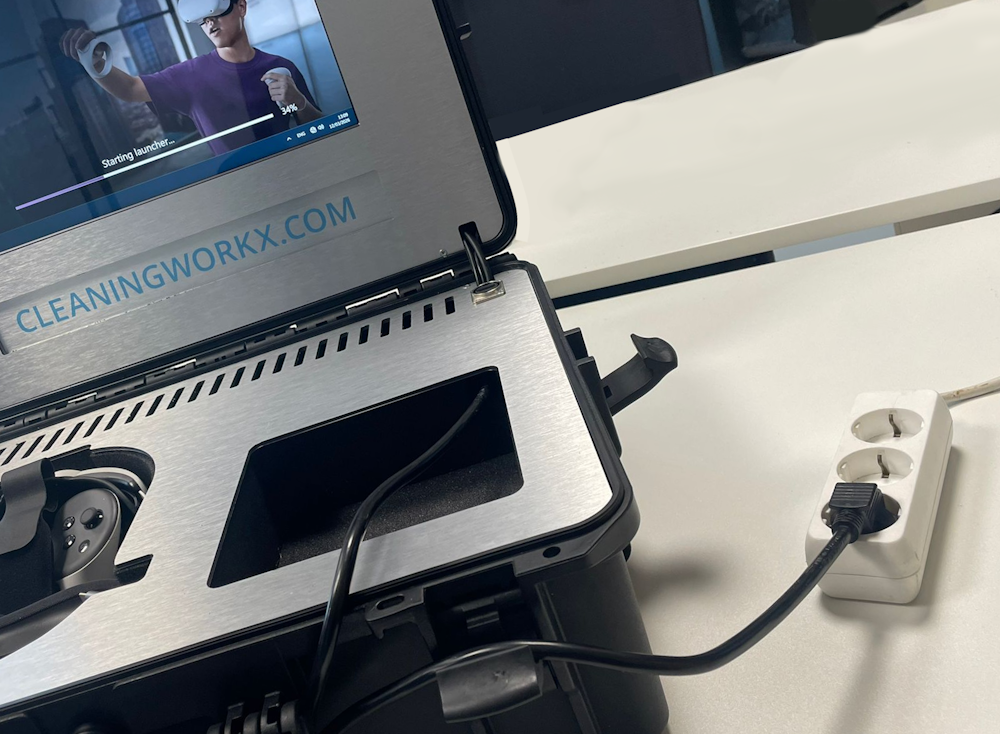
Visible Components
Touchscreen
The built-in touchscreen is used to control the system inside the case.
From here you can start the training software and operate the spectator interface to monitor the VR headset.
VR Headset
The VR headset is used by the trainee to follow the cleaning training in virtual reality.
It provides the immersive training environment and allows interaction with the training scenarios.
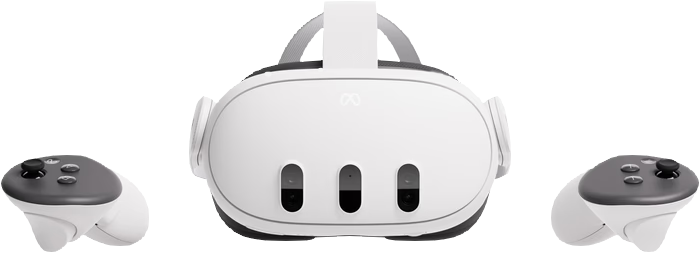
Controllers
The controllers are used by the trainee to interact with objects inside the VR training.
Each controller has a wrist strap to prevent dropping them during use.
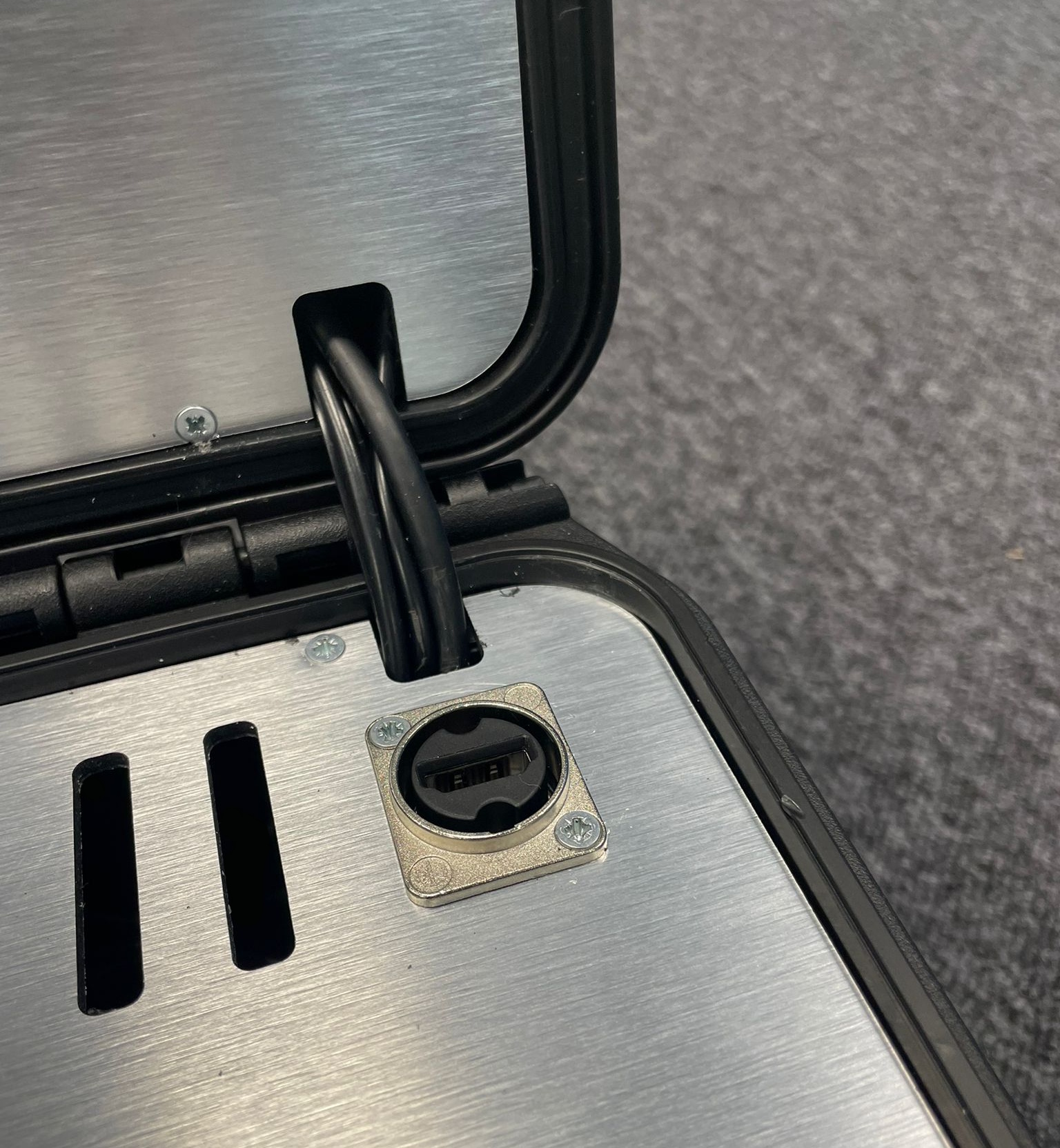
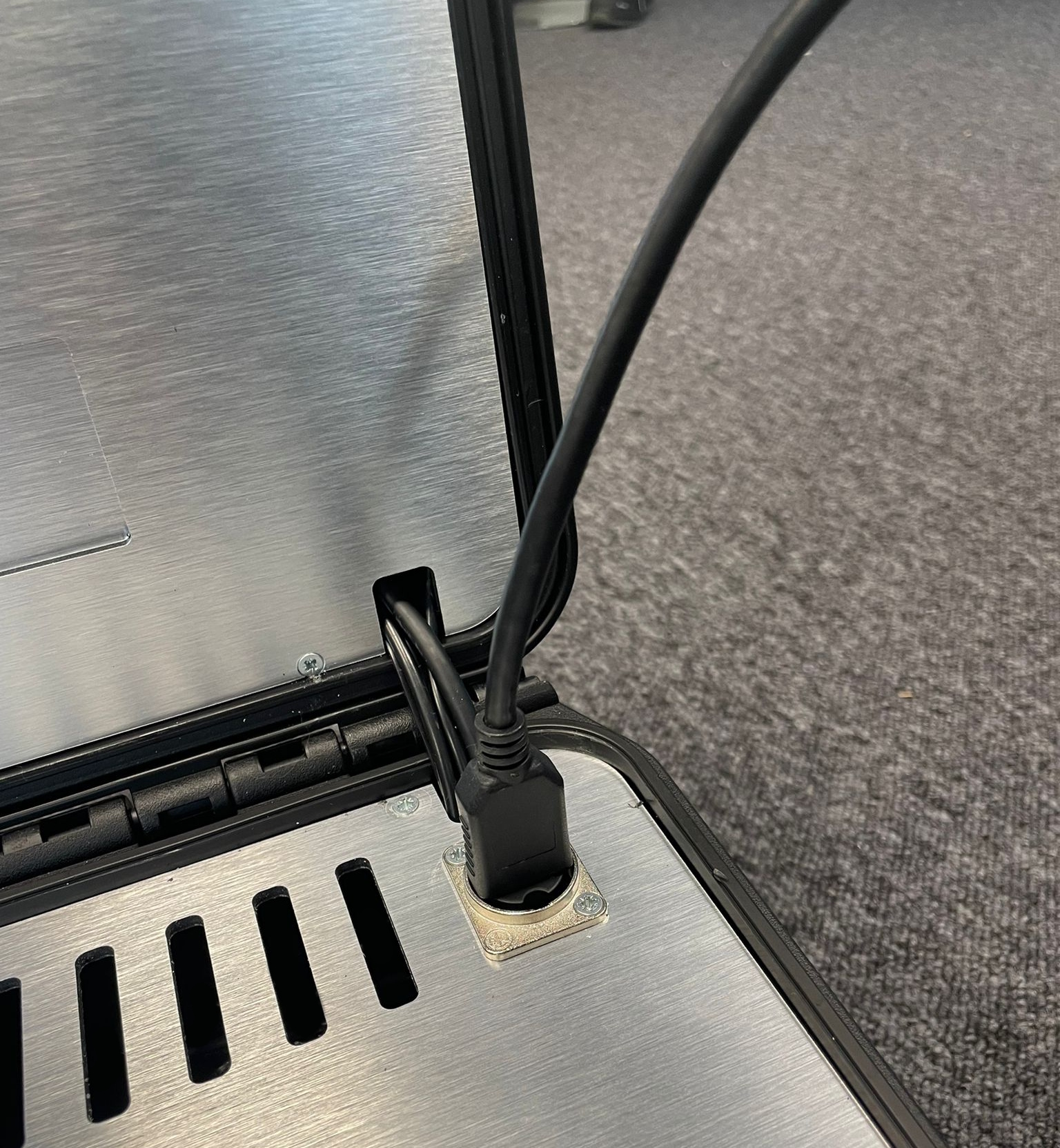
HDMI Input
An external monitor can be connected using the HDMI input.
This allows other people in the room to watch the training session on a larger screen.
Power Cable
The power cable supplies electricity to the system.
Once connected to a power outlet, the computer and touchscreen inside the case will start automatically.
Hidden Components
The box also contains some hidden components on the inside. You will never have to do anything with these, but it still might be good to know that they exist.
Built-in Computer
Inside the case is a computer that runs the VR Spectator software and manages the connection with the VR headset. This system allows trainers to monitor and control the training session.
Wi-Fi Modem
Inside the case there is a built-in modem. This modem provides the internet connection needed for the system to work.
The modem uses mobile reception, so the case must be used in a location with sufficient signal.
If there is no connection or the training cannot connect to the headset, check the troubleshooting section at Troubleshooting – No Wi-Fi.
Understanding these components will make it easier to follow the rest of the setup instructions.